
Are you wondering how to underline links with CSS for Elementor?
Well, the good news is that I recently had the same issue and have provided the code below that I used.
Let’s dive in!
Quick answer (last checked: November 17, 2026)
Update, November 2026: In current Elementor versions, links inside the Text Editor widget are styled with the selector .elementor-widget-text-editor a. The older .elementor-text-editor class used in the first code box below is only added inside the Elementor editor (Elementor removed it from the front end in version 3.2), so that first snippet may not underline links on your live site.
Quick fix: use the updated code in the box right below the first snippet, then clear your site cache and reload the page. The toggle widget snippet uses .elementor-tab-content, which Elementor’s toggle widget still uses, but test it on your own site.
Elementor Custom CSS Code To Underline Links For Elementor Text Widget
The first thing that you’ll need to understand is that Elementor has different classes for their widgets.
Consequently, if you try to use the normal CSS code to highlight links but use the class for WordPress posts, then you won’t see any change.
For Elementor, if you’re trying to change the links inside of a text editor widget then you want to use the following class: .elementor-text-editor
Additionally, you can add some hover effects using the following class: .elementor-text-editor a:hover
After that, you can add in some familiar CSS code to get the job done.
Here’s a quick overview of the CSS commands to underline links:
- text-decoration: underline [this command creates the underline]
- text-decoration-style: solid [this command creates a solid underline, but you can also make it dashed, wavy, etc.]
- text-decoration-color: #CC3366 [this command specifies the color of the underline using a color code, but you can also simply type out a common color as well]
Note that you need to ensure that each line has a semicolon at the end or the code won’t work.
Now it’s time for the good news!
I went ahead and have provided my exact code that I use below.
Copy & Paste CSS Code For Elementor Text Widget
/* Link Underline In Elementor Text Editor */
.elementor-text-editor a {
text-decoration: underline;
text-decoration-style: solid;
text-decoration-color: #CC3366;
}
.elementor-text-editor a:hover {
text-decoration: underline;
text-decoration-style: solid;
text-decoration-color: gray;
}
Updated CSS for the Text Editor widget (November 2026)
This does the same thing as the first snippet but uses the selector that Elementor outputs on the front end of your site:
/* Link Underline In Elementor Text Editor (updated selector) */
.elementor-widget-text-editor a {
  text-decoration: underline;
  text-decoration-style: solid;
  text-decoration-color: #CC3366;
}
.elementor-widget-text-editor a:hover {
  text-decoration: underline;
  text-decoration-style: solid;
  text-decoration-color: gray;
}
Elementor Custom CSS Code To Underline Links For Elementor Toggle Widget
Another thing I noticed after adding in CSS code to underline links for the Elementor text widget was that it wasn’t showing up for my FAQs.
Take a look at the image below from my ActiveCampaign review which shows the toggle widget that I’m referring to.

In order to get the link underlined in the image above, I had to add in some additional code for that specific widget.
See below the code to copy and paste.
Copy & Paste CSS Code For Elementor Toggle Widget
/* Link Underline In Elementor Toggle Widget */
.elementor-tab-content a {
text-decoration: underline;
text-decoration-style: solid;
text-decoration-color: #CC3366;
}
.elementor-tab-content a:hover {
text-decoration: underline;
text-decoration-style: solid;
text-decoration-color: gray;
}
You’ll notice from the image above that it was simply a matter of determining what class the widget was that I wanted to target.
If you have a different widget you want, then you can right click on the specific widget on your website and choose “inspect”.

From there, you can take the class and replace it in your CSS code appropriately.
Where Do You Paste The CSS Code In Elementor?
Here’s an overview of how to paste the CSS code in Elementor if you’re not familiar.
Step 1: 
Next, you need to select Additional CSS to apply the CSS code globally across your site. The theme I’m using is Astra for reference.
Step 2: 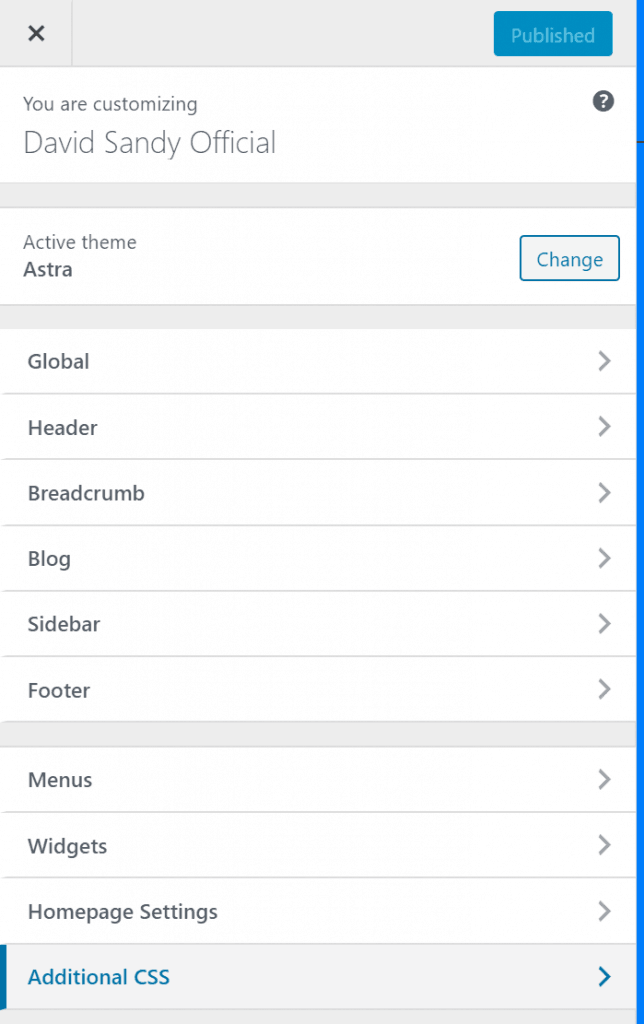
Finally, you can simply paste in your CSS code and hit publish!
Frequently Asked Questions
How do I use custom CSS in Elementor?
In Elementor, you can either add custom CSS globally across your site or for individual columns and widgets.
- Click on the widget you want to edit.
- Navigate to advanced settings
- Scroll down to custom CSS and paste in your code.
How do I delete a column in Elementor?
In order to delete an Elementor column, simply right click on the column symbol and select delete.
How do I delete a widget in Elementor?
In order to delete an Elementor widget, simply right click on the edit widget symbol and select delete.
Conclusion
Congratulations! If you followed the steps outlined, then you should have your custom CSS code in Elementor and have your links underlined.
Play around with different underline styles and colors to see what you can create.
This just scratches the surface of what you can do with CSS code for your website.
If you want to learn more about blogging and other topics, then check out the list of posts below to dive into next. 🙂
Why is my Elementor link underline CSS not working?
The most common cause is the selector. The older class .elementor-text-editor is only added inside the Elementor editor, so use .elementor-widget-text-editor a for the Text Editor widget instead. Also clear your site and browser cache after you save the CSS.
How do I find the right CSS class for an Elementor widget?
Right click the widget on your live page, choose Inspect, and look at the class names on the widget and its parents. Then use that class in front of “a” in your CSS.
Posts You May Also Enjoy…
- How To Start A Blog: Complete Step-By-Step Guide
- Elementor Review: Best WordPress Page Builder
- Best Web Hosting For Beginners
- URL Shortener
- Affiliate Earnings & Break-Even Planner
- UTM Builder & GA4 Channel Checker
Affiliate Disclaimer
I hope you enjoyed this post. This post may contain affiliate links, meaning I get a commission if you decide to purchase through my links at no additional cost to you.

OK … but how do I get rid of the underline in elementor buttons? I’ve tried them all as far as I can see, most logic one elementor-button-text, but nothing changed.
I’ve implemented the code on my own site and don’t have any problems with the underline occurring with the text inside Elementor buttons. Maybe double-check to see you’ve got the code correct.
David, this CSS was SO helpful! Thank you so much for sharing it with us. I wanted to underline hyperlinks on our homepage, created in Elementor. They weren’t underlined via my theme’s Customizer as all the other non-Elementor pages were. I simply copied your CSS, changed the font color to match that of my hyperlinks … and it was done. I sure appreciate your technical knowledge and your generosity in sharing it! Thank you.